Macros
Create Macro
A macro can be created by clicking Create Macro option present in the menu bar. There are two options by which you can create a macro. You can either write a macro or record one. Macros are written using Visual Basic.
To create a macro, follow the given steps:
-
Click Macros > Create Macros.
-
The following dialog box appears.
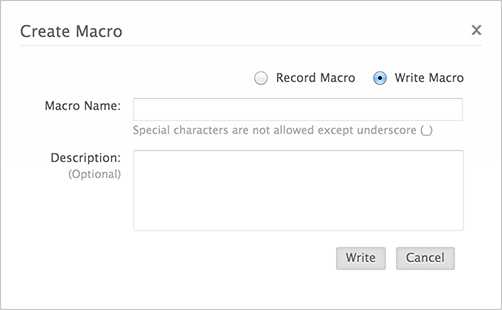
3. Name the macro that you wish to create. You can also describe the functioning of the macro.
4. You can choose to either record the macro or write the code for macro using VBA editor.
Record Macro
To create a macro by recording,
-
Click Macro > Record Macro.
-
Name the macro and continue recording.
-
Click on the box near Use Relative Reference if you want the cell referencing in the macro to be relative and not absolute.
-
There is a notification
 to indicate that the recording has begun.
 -
Make the changes that you wish to be recorded in the macro. They will be captured for your future use.
- Click on Stop Recording
 icon near the notification to stop the process.
 - If you wish to cancel all the events, then click Cancel.
Play Macro
To play a recorded macro,
- Click the Macros menu > Run Macro option from the toolbar.
- Select the macro that you want to run.
Events
You can make use of events available to code your macro. The following are the events supported by Sheet:
Workbook Events:
1. Open
2. New Sheet
Sheet Events:
1. Change
You can code a macro in such a way that the macro is executed as the event happens, i.e., a macro under the event New Sheet will be run if a new sheet is created.
Assign Macros to Buttons
A macro can also be assigned to a button for easy execution. To assign a macro to a button, follow the given steps:
-
Click Insert > Buttons.
-
Name the button now present in the sheet.
-
Click Assign Macro present near the button. Select an already existing macro or create a new macro to be assigned to the button created.

Related Articles
Macros
Save time by combining sets of actions that can be executed for a group of records in a module. Macros are a set of actions that can be executed for a group of records in a module. These sets of actions includesending emails, creating ...Macros
Macros are a set of actions that can be executed for a group of records in a module. These sets of actions include sending emails, creating tasks, and updating a field in the records with a specified value. You may have a set of actions that you ...