Autoresponder Scenario
The Scenario
- A visitor to your web site submits the web form and signs up for a 30-day trial period of your product.
- An auto-generated Thank you / Welcome email is sent to the user.
- User's (lead) details are listed in CRM under a custom view (eg: Today's Leads).
- Autoresponder is initiated.
- Day 1 - 'Getting Started' email is sent to the user.
- Day 2 - 'Support and Feedback Information' email is sent.
- Day 5 - 'Product Updates' email is sent.
- Day 15 - 'Purchase Offer' email is sent.
- Day 25 - 'Reminder' email is sent.
Note
- If the user subscribes to the product and is excluded from the mailing list, then the follow-up emails that come after will not be sent.
The procedure to set up an autoresponder
- Click the Leads tab.
- In the Leads Home page, under Lead Tools, click the Autoresponders link.
- In the Autoresponders page, click Create Autoresponder.
- In the New Autoresponder page, under the Autoresponder Details section, do the following:
- Enter the Name of the autoresponder.
- Select the user to whom the records will be Assigned To.
- Select the Custom View to set up the recipient list for the autoresponder.
- Select a Folder for the autoresponder.
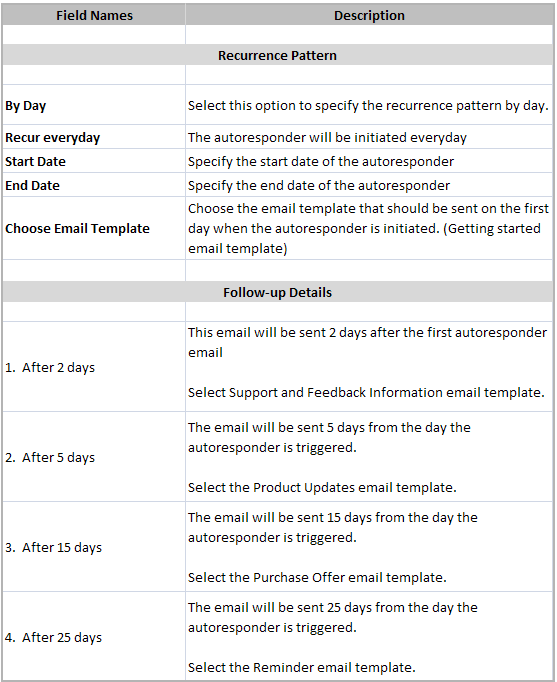
- Select Dynamic and specify the corresponding details (Refer to the table.)
- Click Save.
Note
- If the user subscribes to the product, during the follow-up process, the user's email address should be excluded from the mailing list. On excluding the email address, the successive follow-up emails will not be sent to the user.
The following table provides information on the options that you need to specify for the autoresponder.
Related Articles
Autoresponders
Set up Autoresponder Autoresponders are the solution to send automated replies and follow-up emails to the prospects and customers. Once you receive a response from the lead or contact, you have to manually exclude the contacts from the mailing list. ...Set up Autoresponders
Autoresponders are the solution to send automated replies and follow-up emails to the prospects and customers. Once you receive a response from the lead or contact, you have to manually exclude the contacts from the mailing list. See ...