Navigate Records
Navigate primarily means the process of moving back and forth within the records. Navigation in CRM allows easy movement between records; provides options to choose the number of records to be displayed in one page; and saves time in accessing records.The two navigational options available in CRM are:
Page-level Navigation
Page-level navigation allows moving from a particular page with a list of records to the previous or next consecutive page, with more such records.
To navigate records
- Click the [Module] tab.
- In the [Module] home page, select a List View from the drop-down list.
- In the [Module] section, click the Previous or Next arrows to access the record list.
Note
- You can select the number of Records per page from the drop down list to see more records.
- The number of records that you can view per page varies based on your CRM Edition.
Record-level Navigation
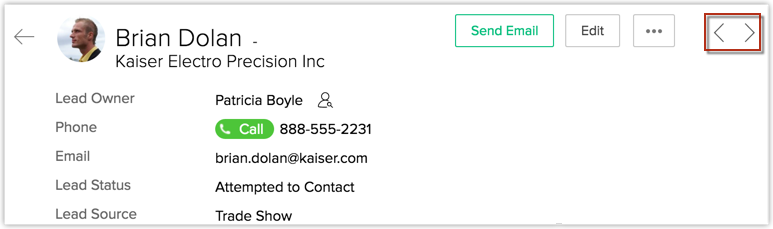
Record-level navigation allows moving from one record to the previous or next consecutive record(s).
To navigate records
- Click the [Module] tab.
- In the [Module] home page, select a List View from the drop-down list.
- From the list of records, click any record.
- In the Record Details page, click the Previous or Next arrows to access the next/previous record, or directly go to the first/last record.

Related Articles
Approving Records
The import feature and Web forms have an option to enable manual approval of records. When this option is enabled, records imported or gathered through web forms are not added directly to the modules. They need to be approved first for other users to ...Create Records
You can create records in the Leads, Accounts, Contacts, Potentials, Tasks, Events, Calls, Cases, Products, Vendors, Quotes modules. To create records Go to the module. Tap Add icon. Specify the details and tap Save. Delete Records Occasionally, you ...Share Records
Share Records with Groups In CRM, records are always owned by the user. However, access rights to the records can be extended to other users by grouping a set of users and setting up sharing rules for each module. After setting up the sharing rules, ...Search Records
Using the Search feature, you can locate specific information or specific records without having to go through the entire list of records. From the list of matching records, if any record is online (retrieved from the server) and not locally stored ...Edit Records
You can edit Zoho CRM records from your Android phone To edit a record Go to the module (Leads, Accounts, Contacts, etc.). Tap the record that you want to edit. Tap the More Options icon and then tap Edit. Modify the details of the record and ...